01
Separate the change from the subject
Write the change you want, then list the subject details you will compare afterward. For example, change the background while checking the clothing, face, and pose against the reference.
Describe the image you want to change, identify details to keep, and use supported references to guide a new attempt. Compare the result with your original brief.
Prompt Examples
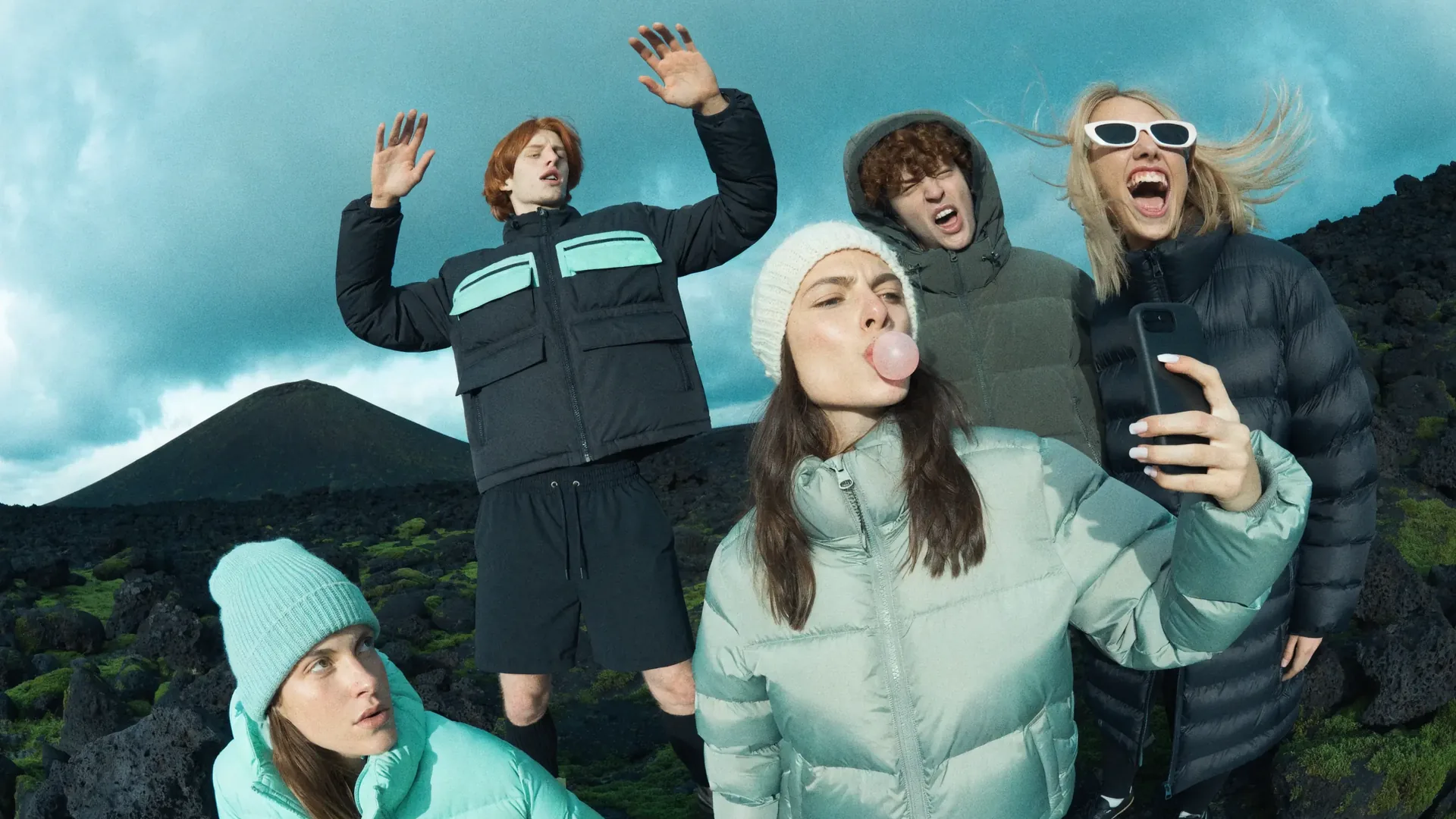
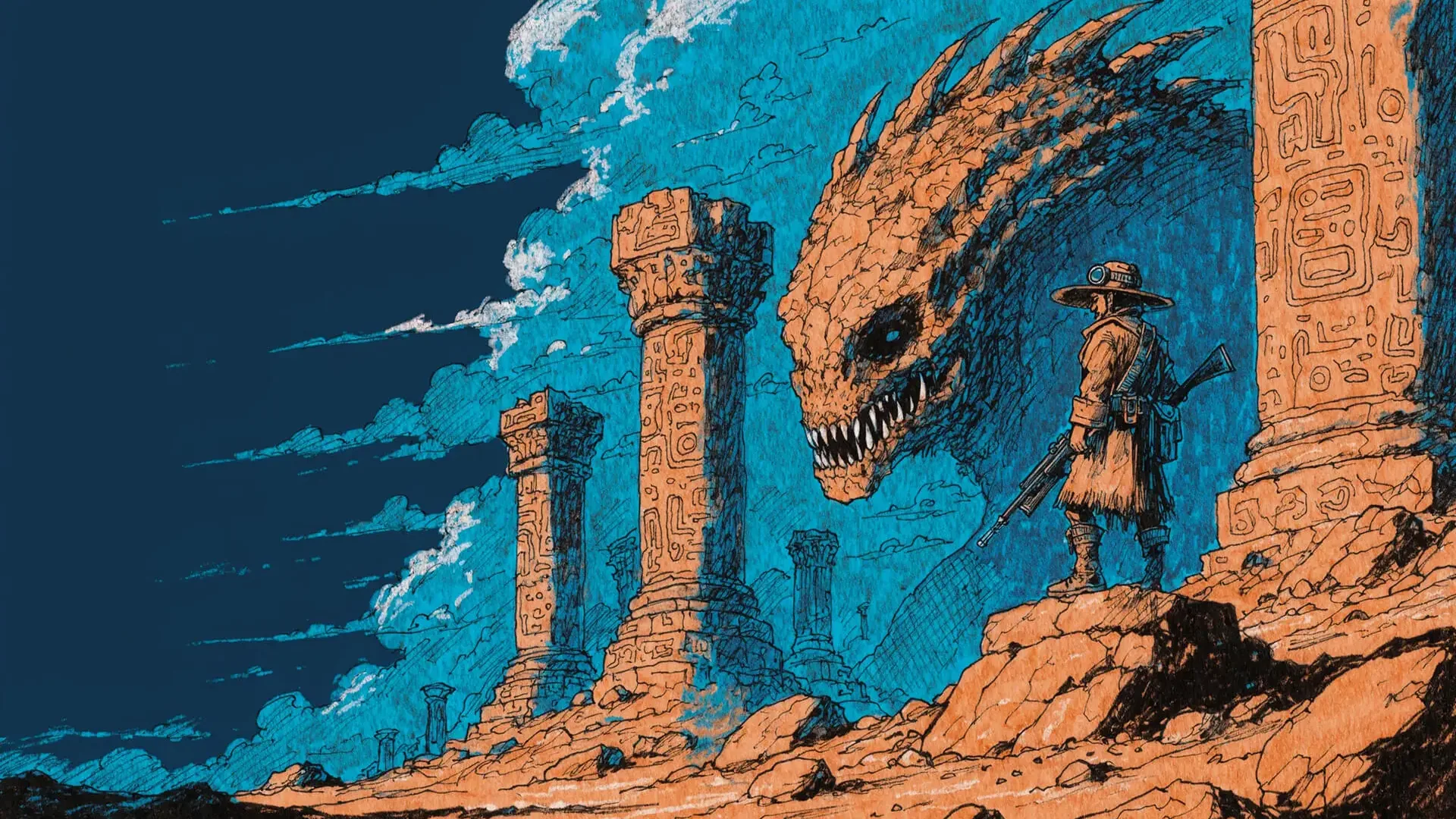
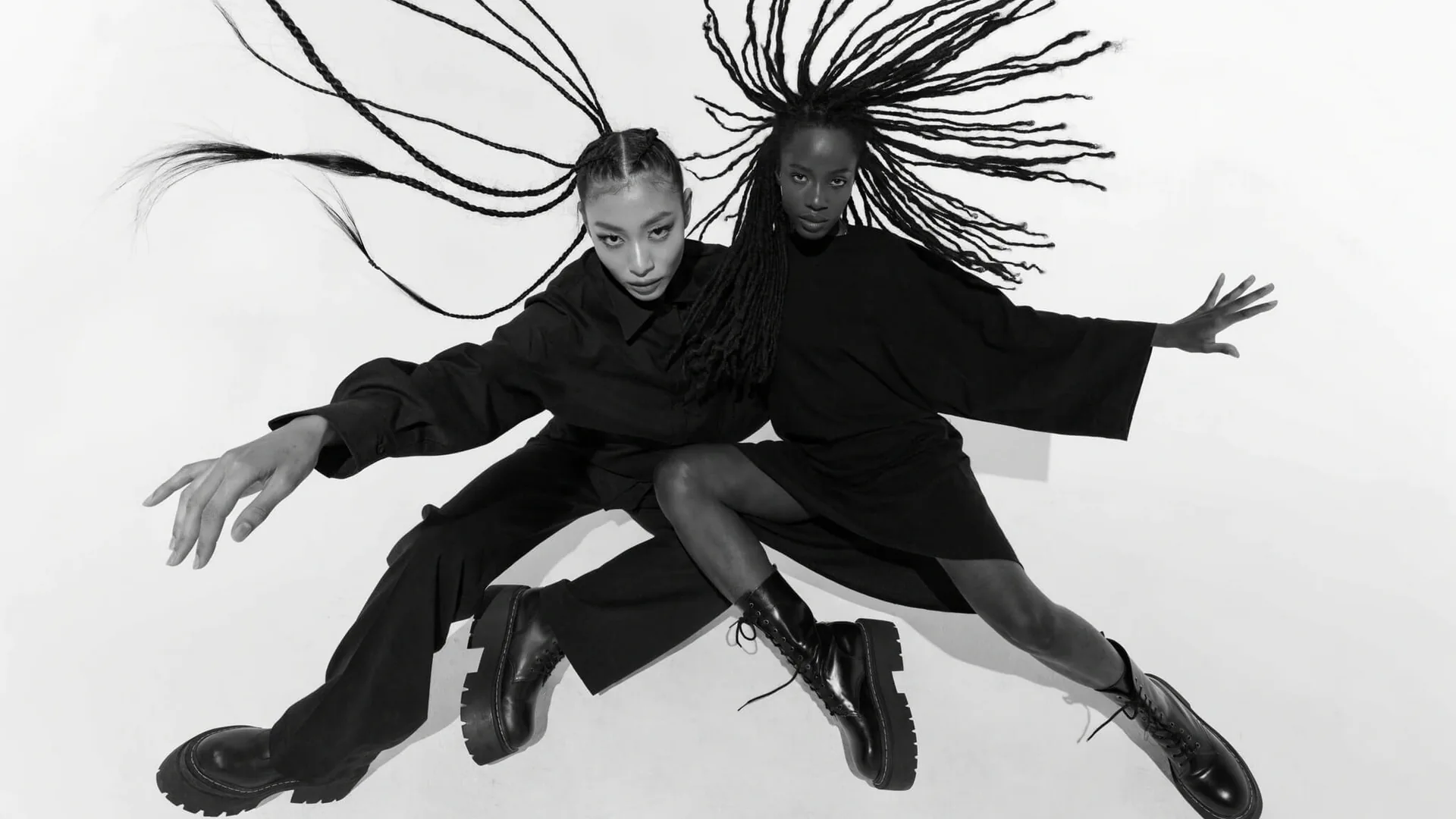
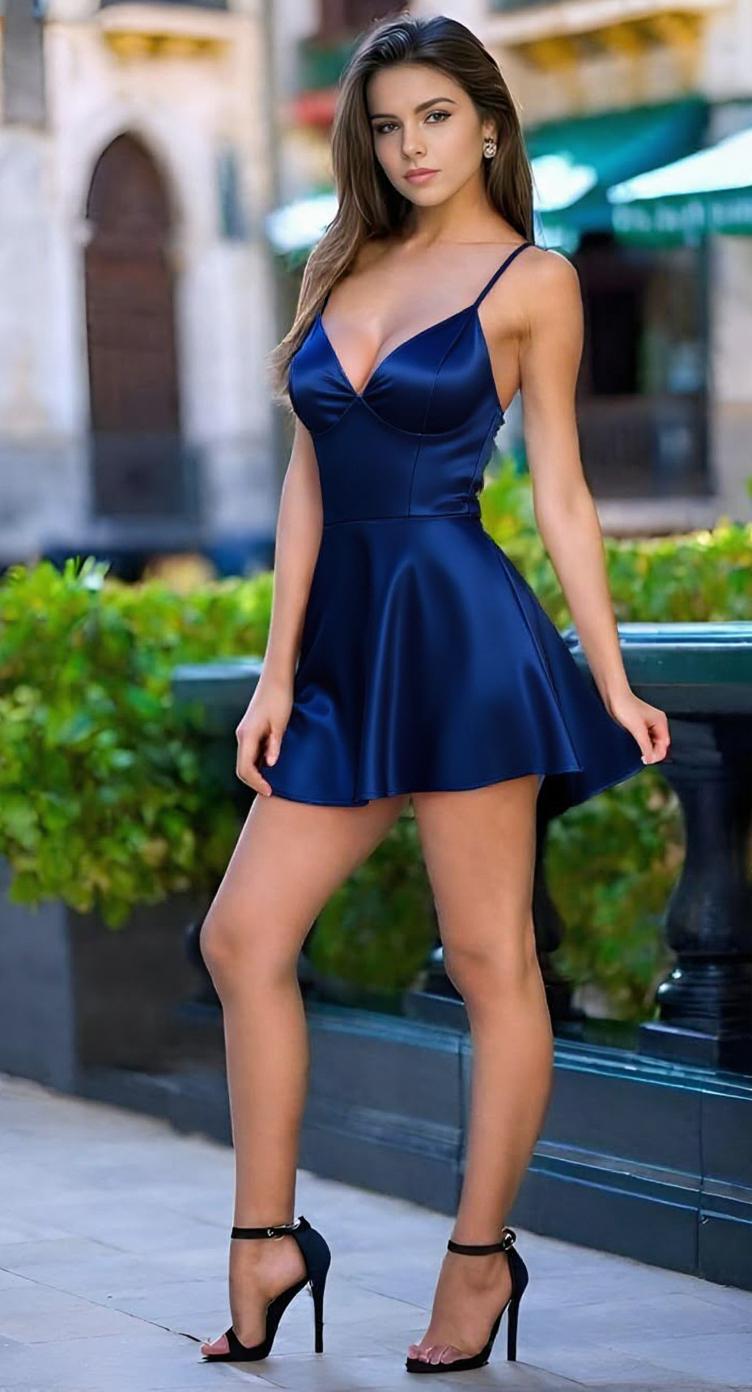
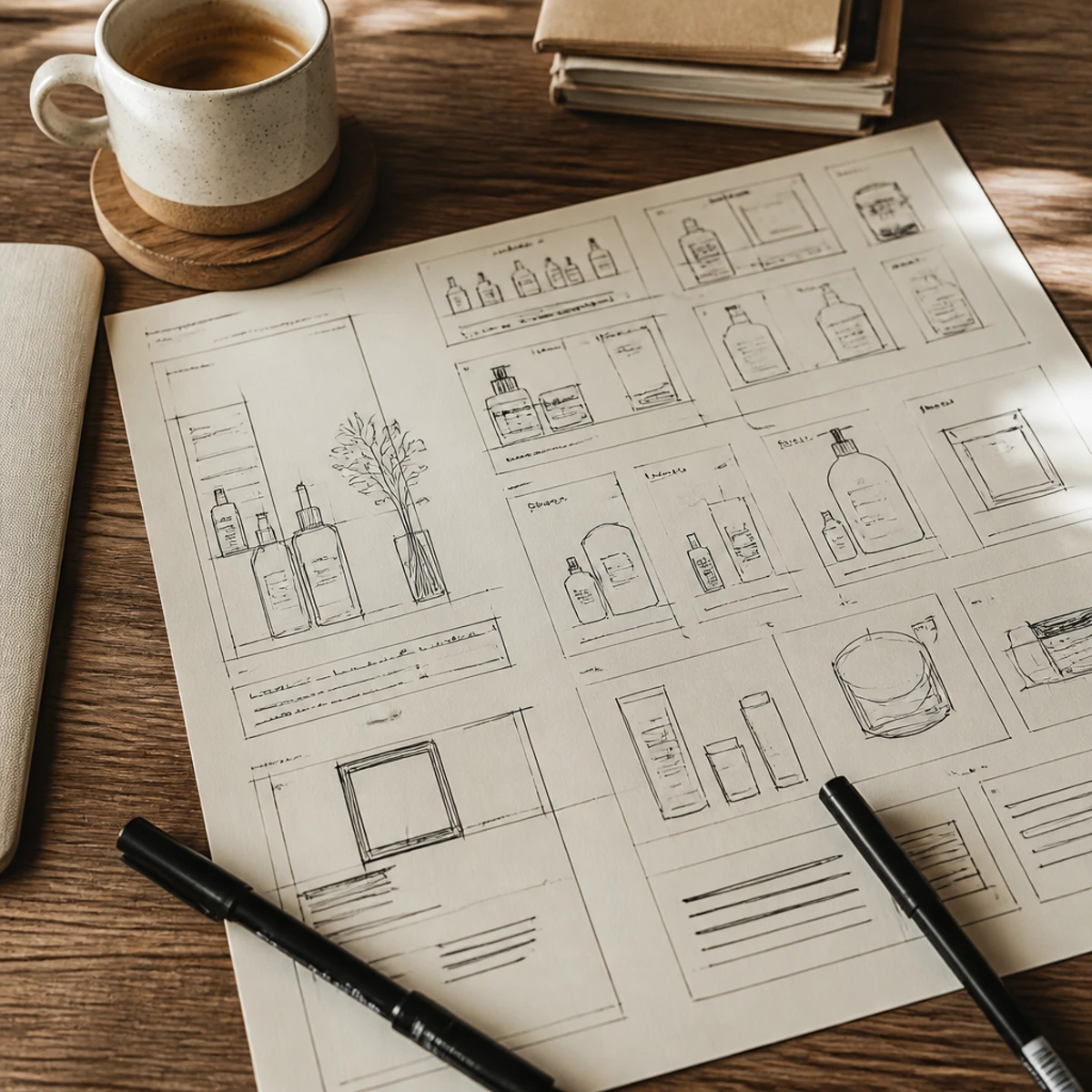
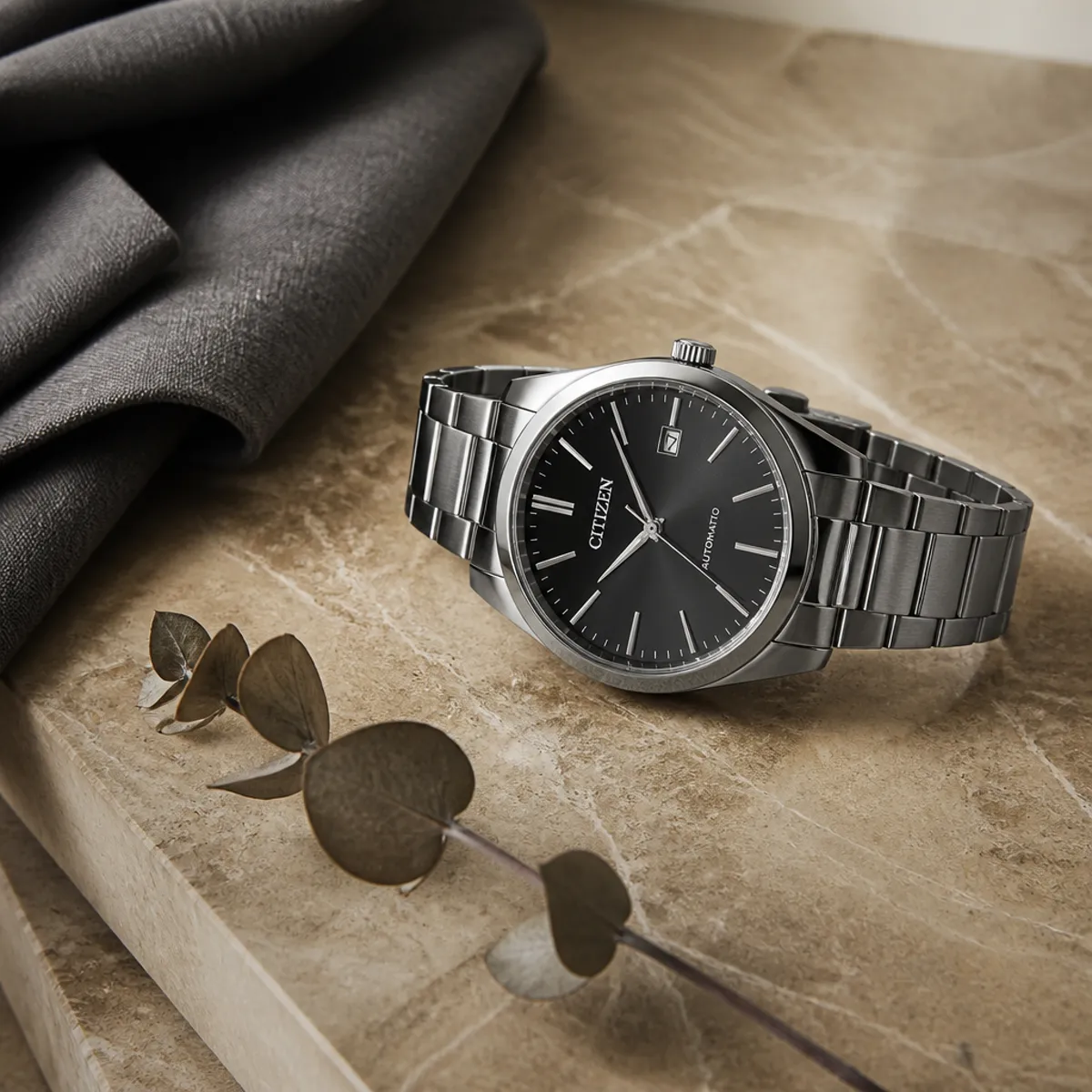
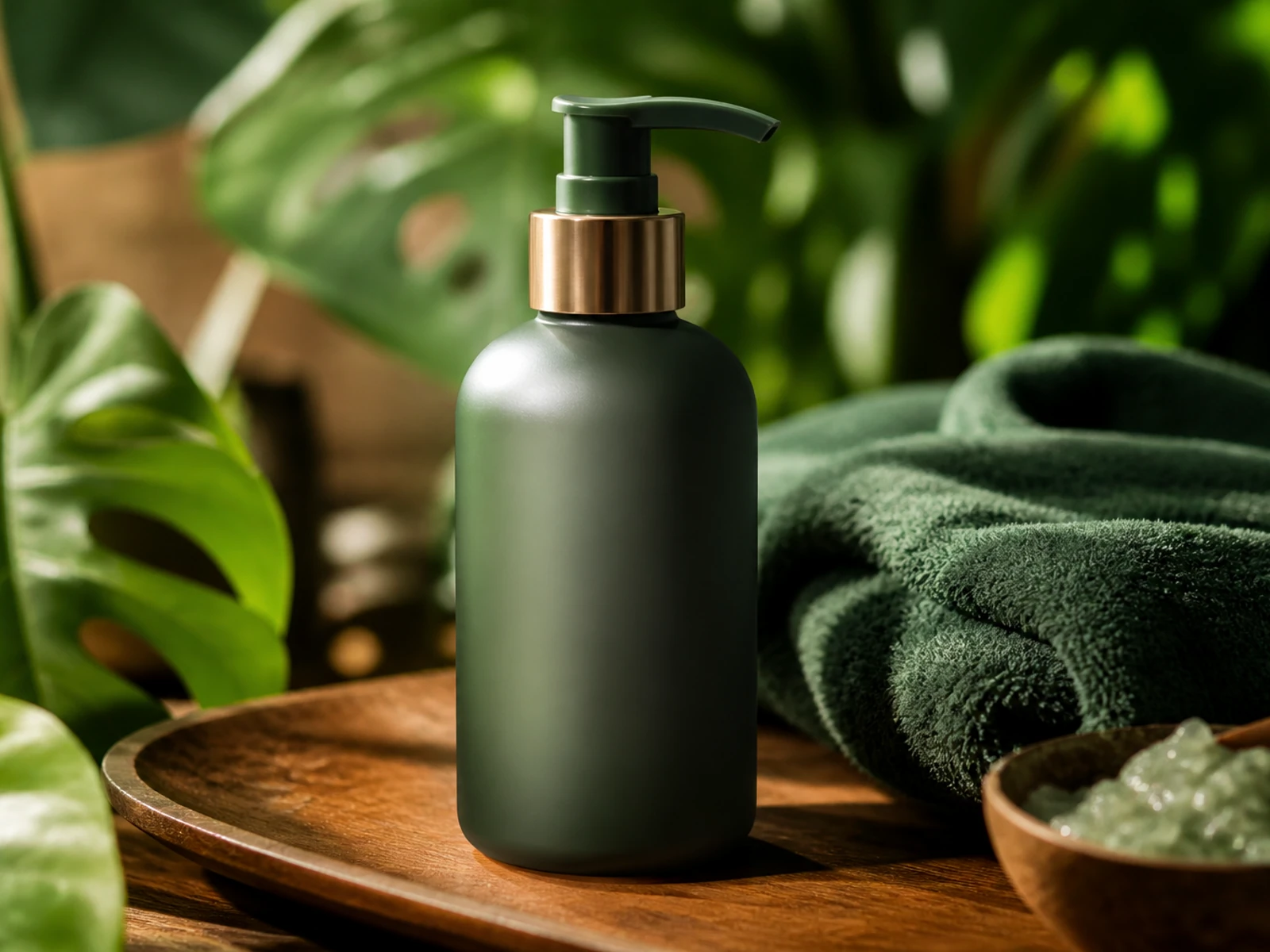
The four images illustrate compositions you can describe and inspect. They are concept references, not verified outputs from this website or evidence of a model benchmark.
Image workflow
Work on one visual direction at a time. A clear brief makes it easier to inspect the result and decide what to change next.
01
Write the change you want, then list the subject details you will compare afterward. For example, change the background while checking the clothing, face, and pose against the reference.

02
If the selected model accepts reference images, choose one that clarifies your product or scene. Check the visible input limits and assign each reference a clear role in your brief.
03
Compare the output with the source image at full size. Check the requested change and the details you intended to keep; references guide the result but do not guarantee exact preservation.
04
Finish exact typography, retouching, and layout in an external editor. A campaign set is planned through separate image requests; it is not an in-app batch or layout feature.
Technology
Seedream Image is an independent image workspace for reference-guided image creation and revision. Available Seedream choices include 5.0, 4.5, and 4.0; the selected model and its displayed settings determine each request.
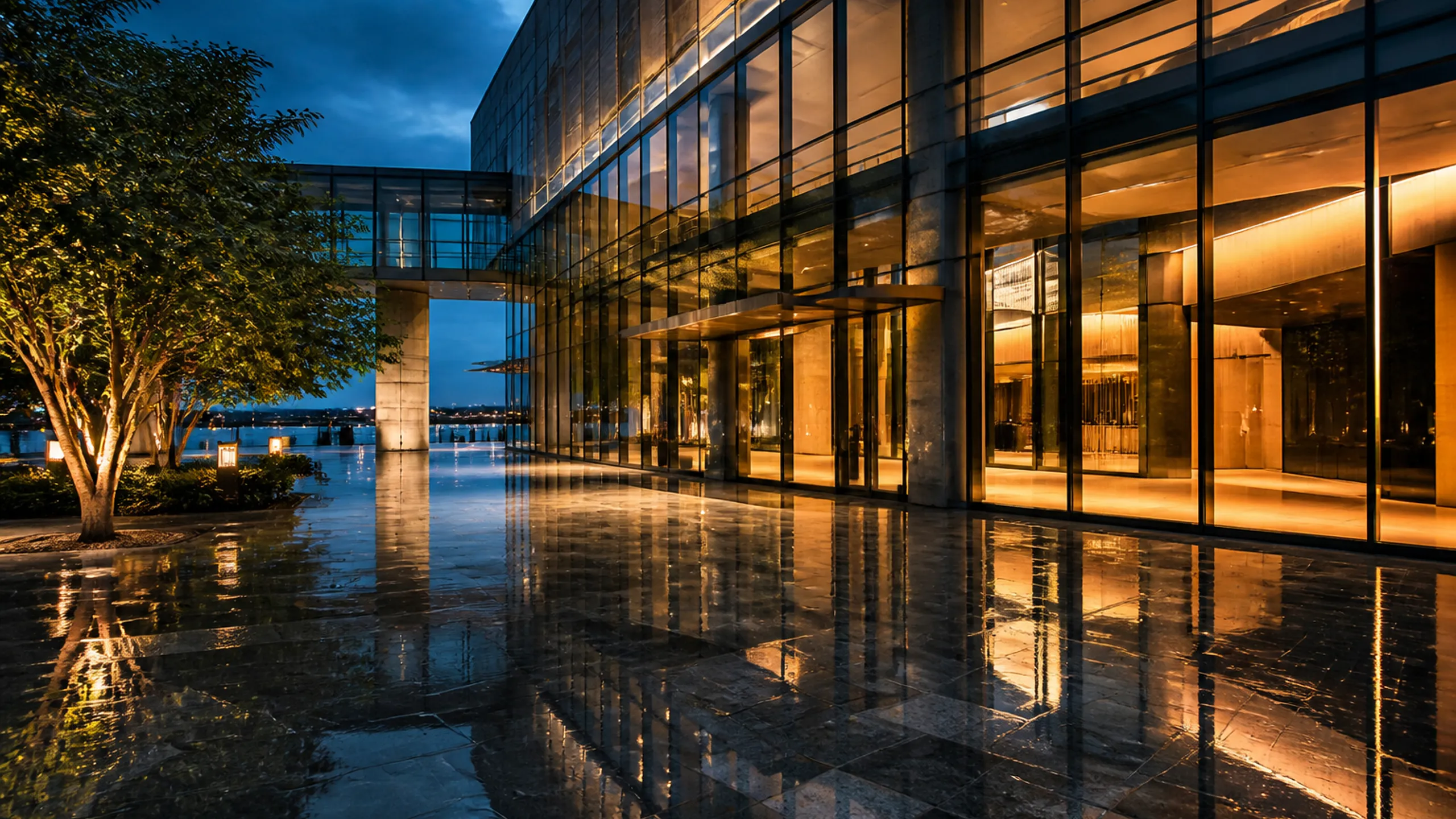
A product listing and a campaign concept ask different things of an image. Name the destination, then describe the crop, background, and space that will help the asset fit it.
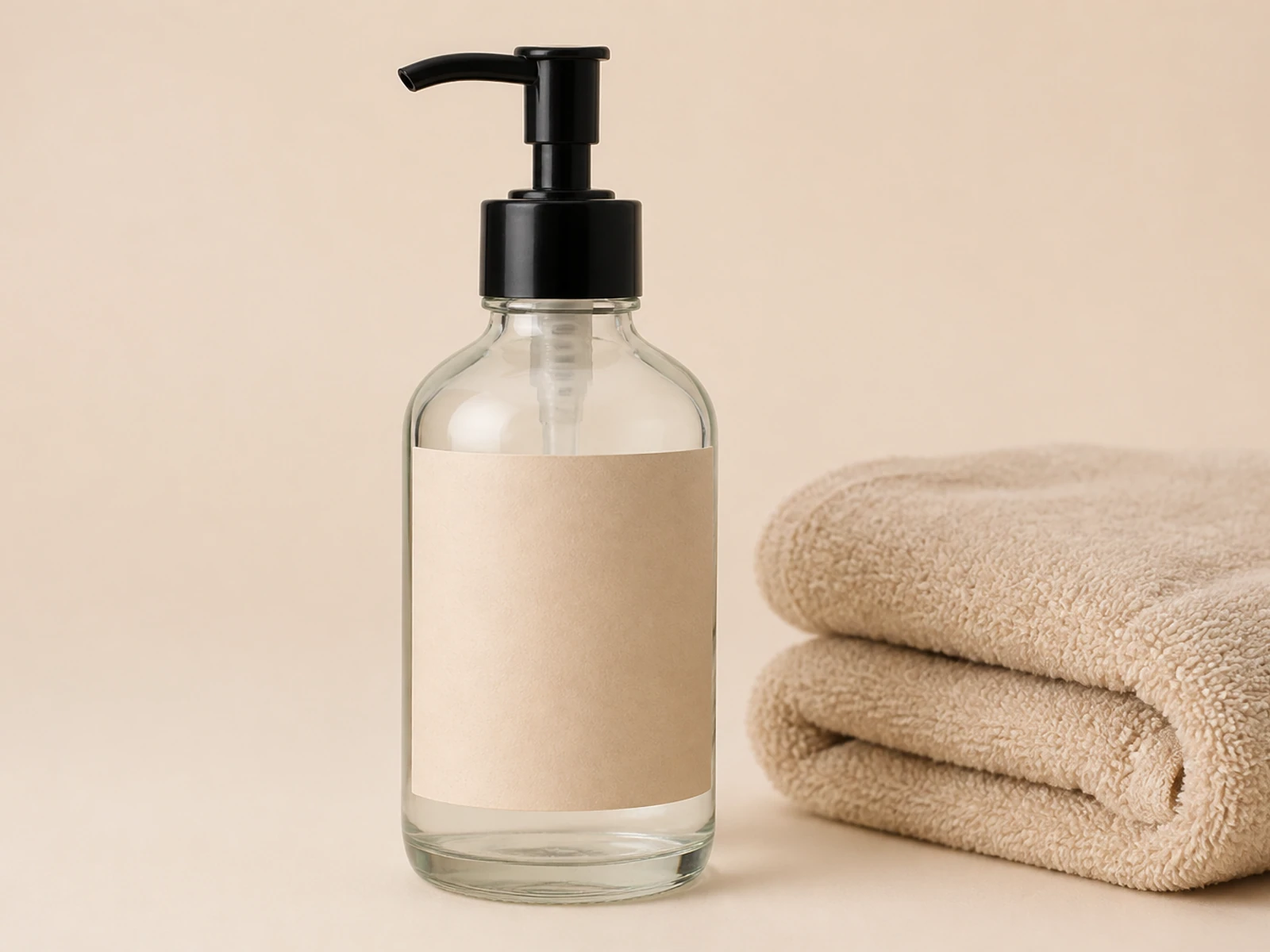
When a model accepts references, explain which image guides the subject and which guides the setting or style. Check the available inputs instead of assuming every model accepts the same set.
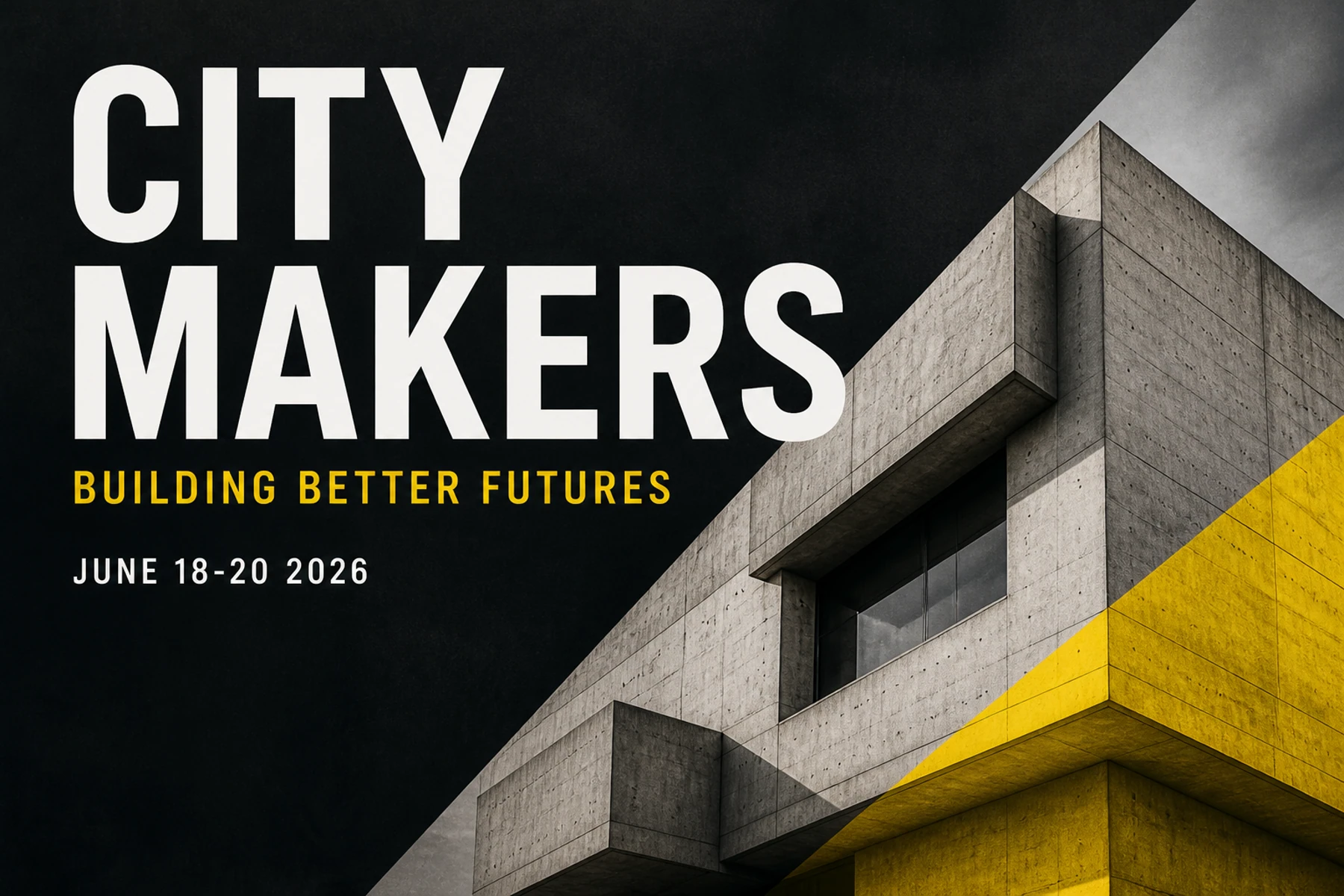
Inspect the returned image beyond its overall mood. Packaging geometry, small type, hands, and reflections can require another attempt or work in an external editor.
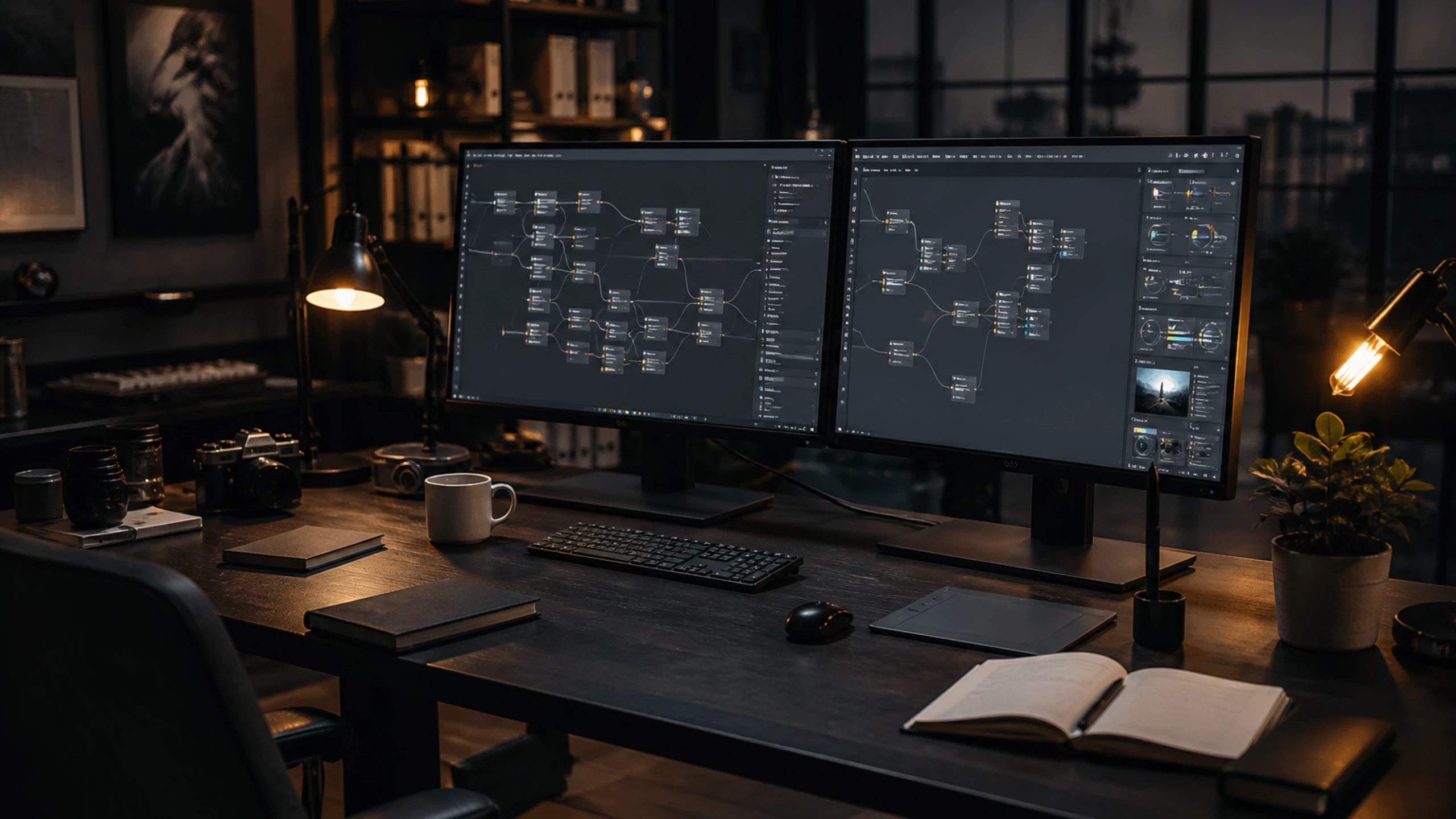
Plan a small group of images by writing one brief for each placement. Save the direction that works, then make a deliberate change for the next request; there is no automatic campaign assembly here.
Real-world uses for Seedream Image
Choose a concrete destination for the image before writing the brief. The crop and review criteria for a listing, portrait, presentation, and billboard can differ.
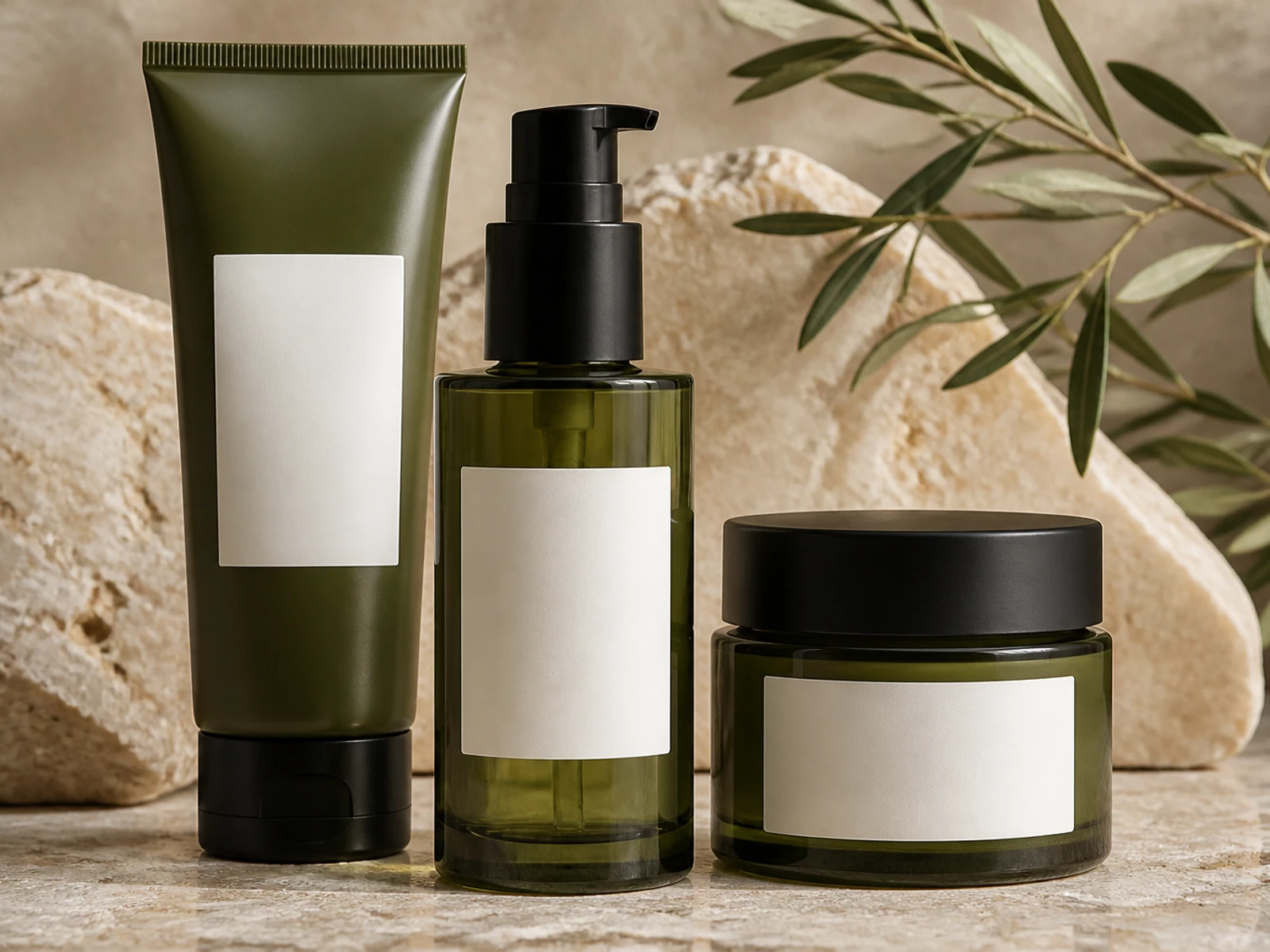
Plan the product size, background, and empty space needed for a listing. Use a supported product reference when useful, and compare the label, cap, and outline before preparing the final layout.
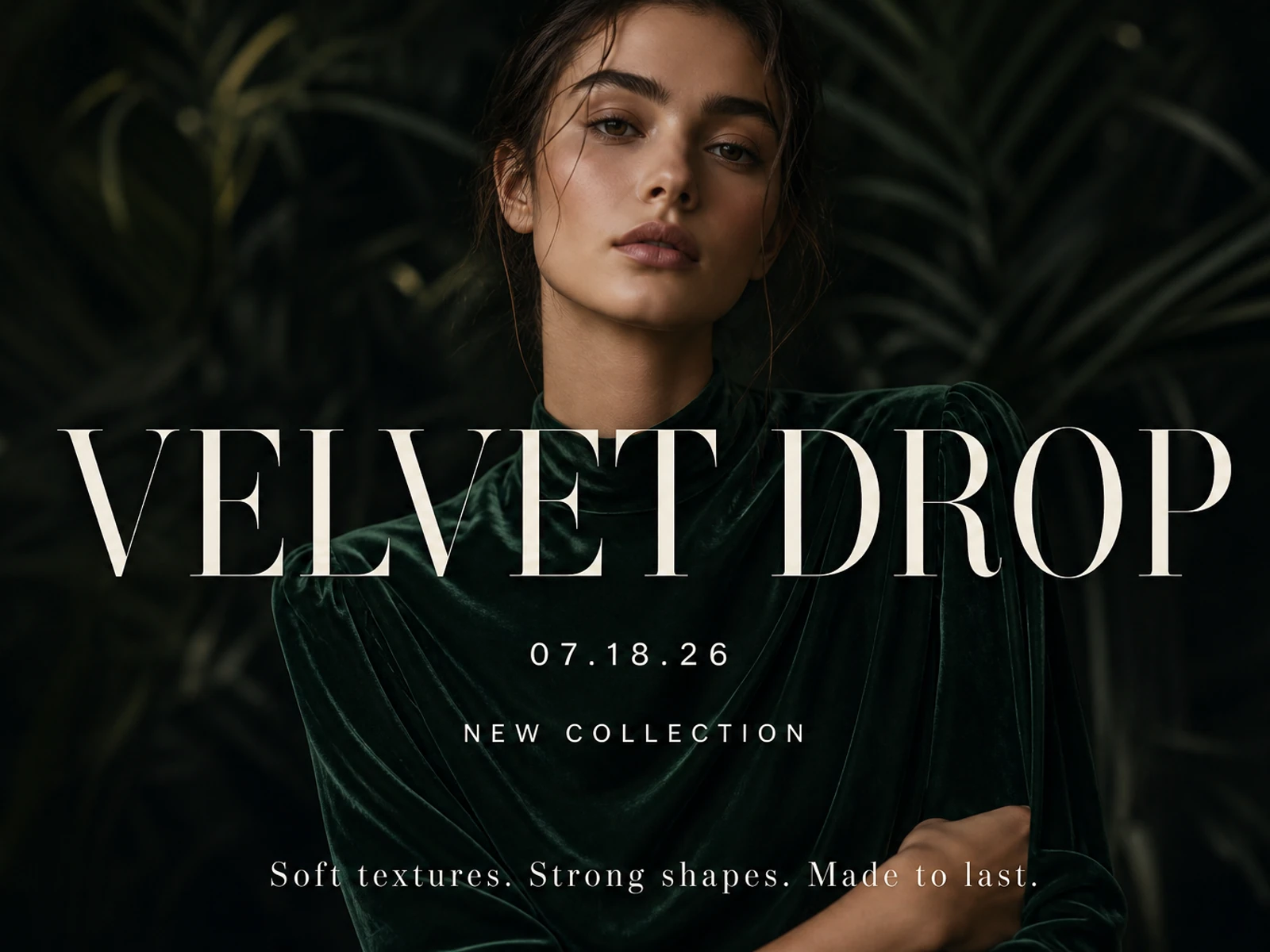
The VELVET DROP poster illustrates how a subject, headline, and background can share a composition. Describe their placement in your brief, then inspect text and spacing in the generated result.

Use the vase-and-books scene to practice a focused image brief. Specify object placement, light, and crop, then inspect edges and proportions before keeping the result.
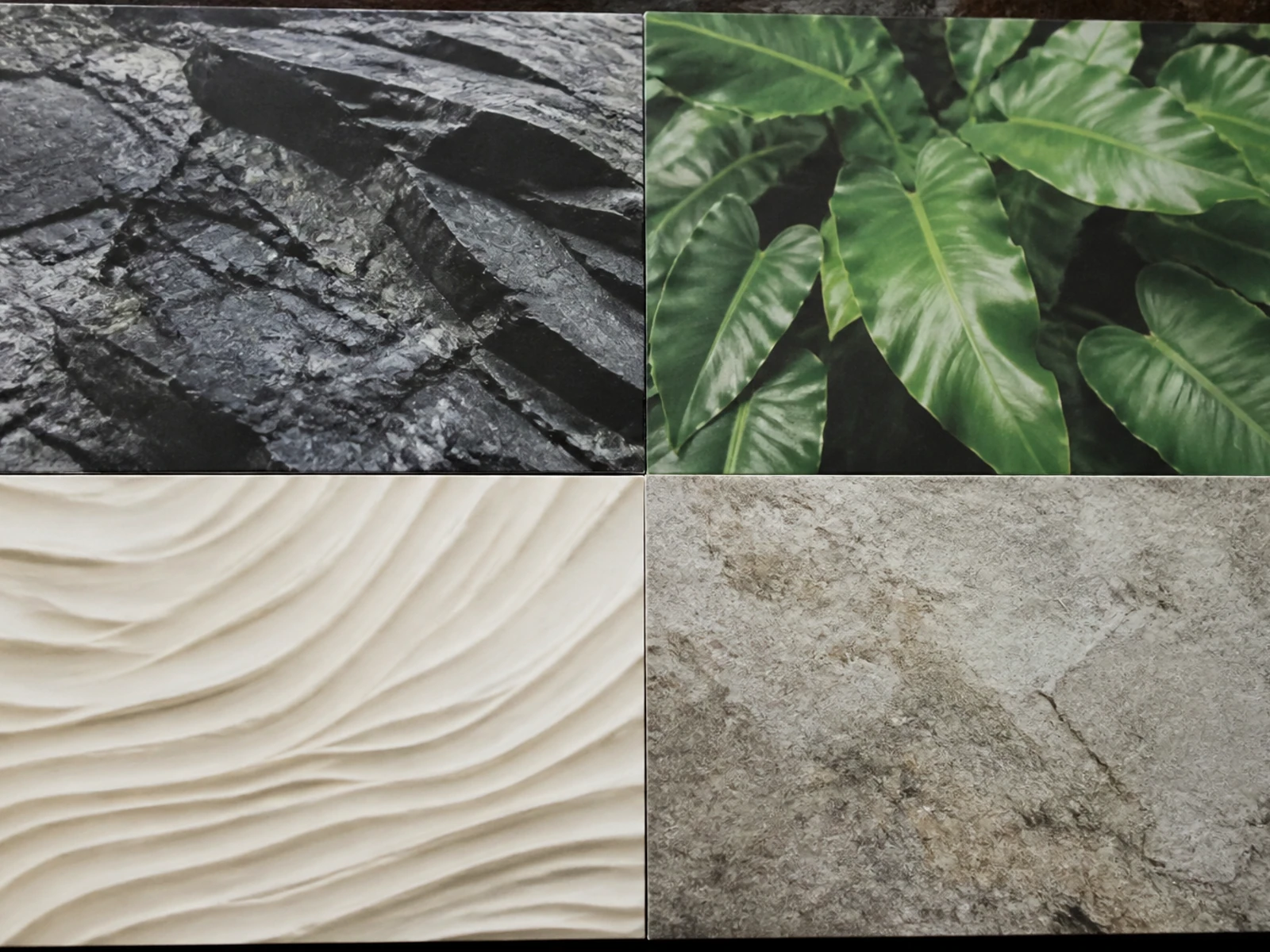
Use the illustrated board to describe texture, colour, and the relationship between panels. Review individual details and arrange your final selections in a separate design editor.
Review each revision
Choose the model by the inputs and settings visible in the generator. Review the displayed credit cost before submitting; support varies between models and modes.
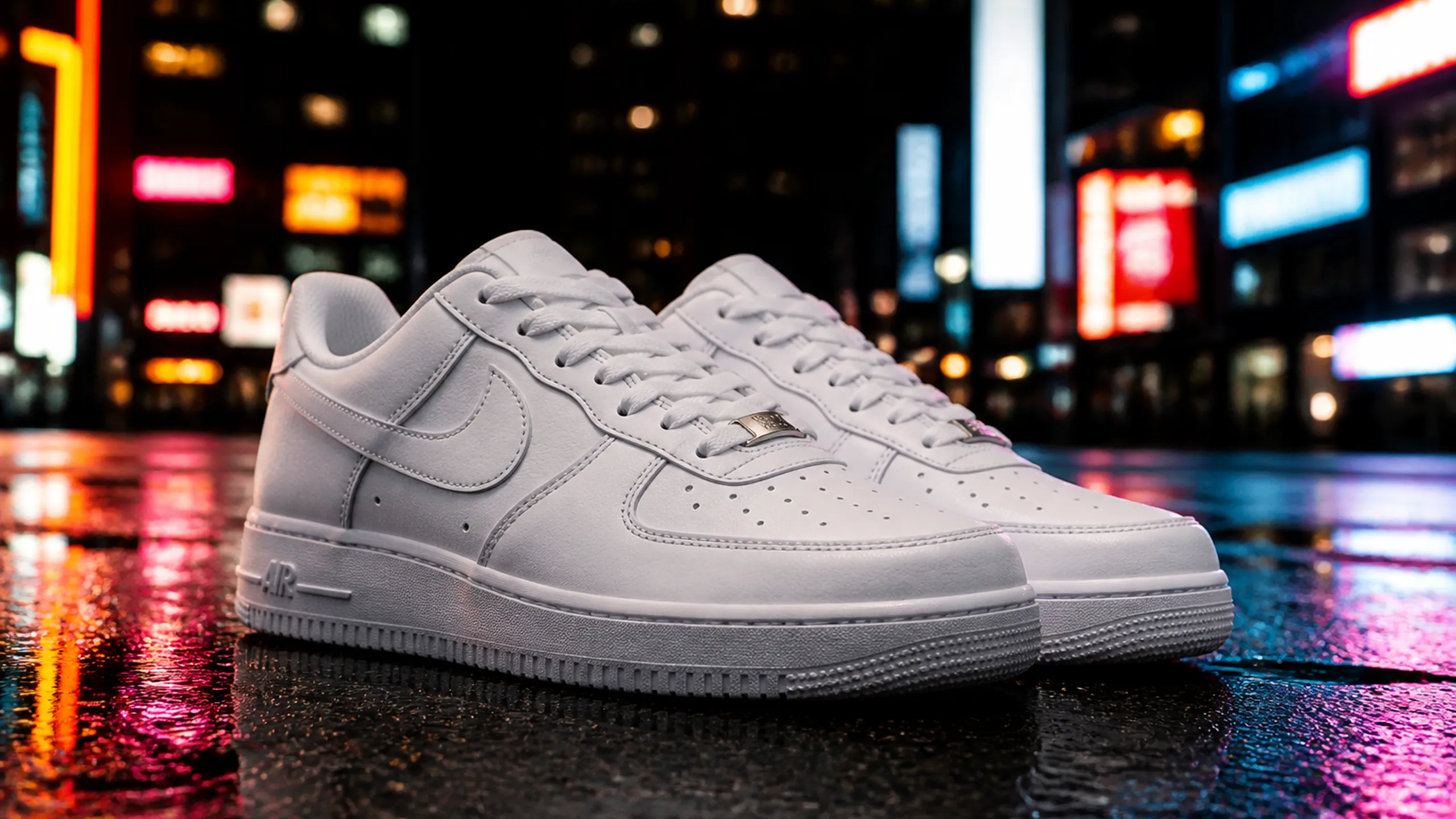
Check whether the current mode accepts text, a reference, or other visible input options. Match your brief to those controls instead of relying on a capability from another model.
Choose from the sizes and aspect ratios actually shown for the selected model. Plan any later crop in your external editor and inspect whether important content remains within it.
Review the current credit estimate after choosing settings. New purchases are paused; an account needs an available credit balance to submit a generation request.
Set review criteria before generating: subject details, composition, text, and the intended change from a reference. Keep or revise the attempt according to those criteria.
Credits
Check the account balance and current generation estimate before planning further attempts. New checkout is paused, so these pages do not promise free or unlimited generation.
Sign in to check the credits currently available to that account. An existing balance is required for generation while new purchases remain paused.
Model and output choices can affect the displayed credit cost. Read the estimate for the current request instead of assuming another model or earlier attempt has the same cost.
Give one request a clear review goal. Inspect the result before deciding whether another attempt is useful, and retain the details of the brief you want to revisit.
If a request fails or its status is unclear, review the task status and account balance before resubmitting. Contact support with the task reference if the outcome needs investigation.
Answers about the site identity, request workflow, references, credits, and the limits of the concept examples.
Distinguish the website brand from the actual model selected for a generation request.
Check supported inputs and inspect the returned details before using an output.
Use separate requests for your planned assets and finish assembly or detailed editing externally.
Understand the paused purchase flow and the role of the concept illustrations.
Still tools for Seedream Image frames
These linked image pages offer other places to inspect available inputs and settings. Their illustrations are concept references, not comparative tests or verified outputs from the named model.
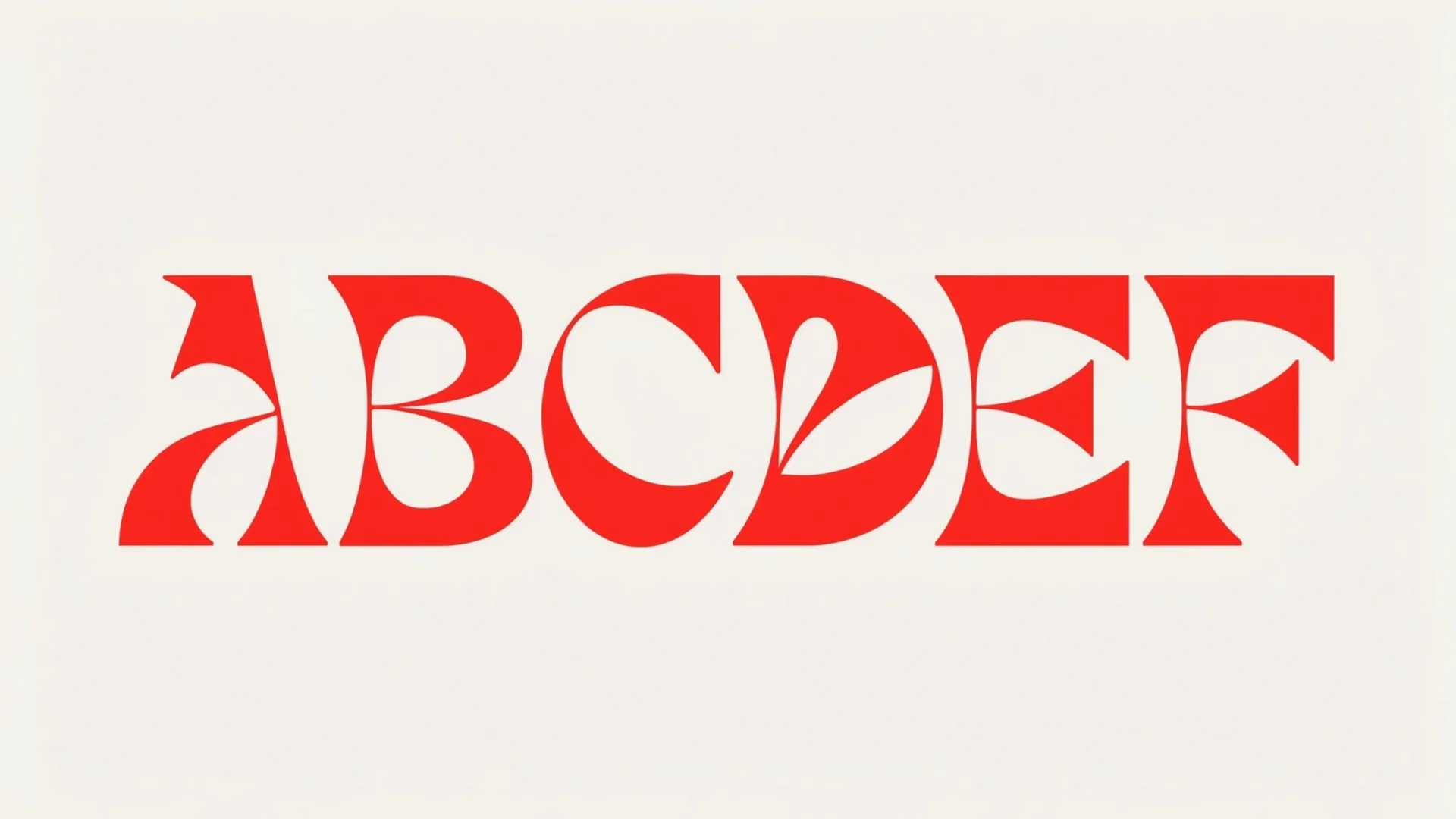
Open the image page to inspect its available inputs and cost. Use a lettering concept to plan composition, then check every word in the result.
Inspect the Pro and Nano Banana 2 pages separately. The fashion and group portraits illustrate different briefs; they do not establish one model as better for either subject.
Review the image page before submitting an illustrated scene. Use the concept preview to think about subject placement and background detail, then inspect your own result.
Compare the settings available on each image page and decide what your brief needs. The portrait and monochrome fashion previews show visual directions, not performance rankings.

GPT-4o
Concept reference: close-up portrait with cinematic side light. This illustration is not a verified GPT-4o output.
Explore Our Curated Set of Associated AI Models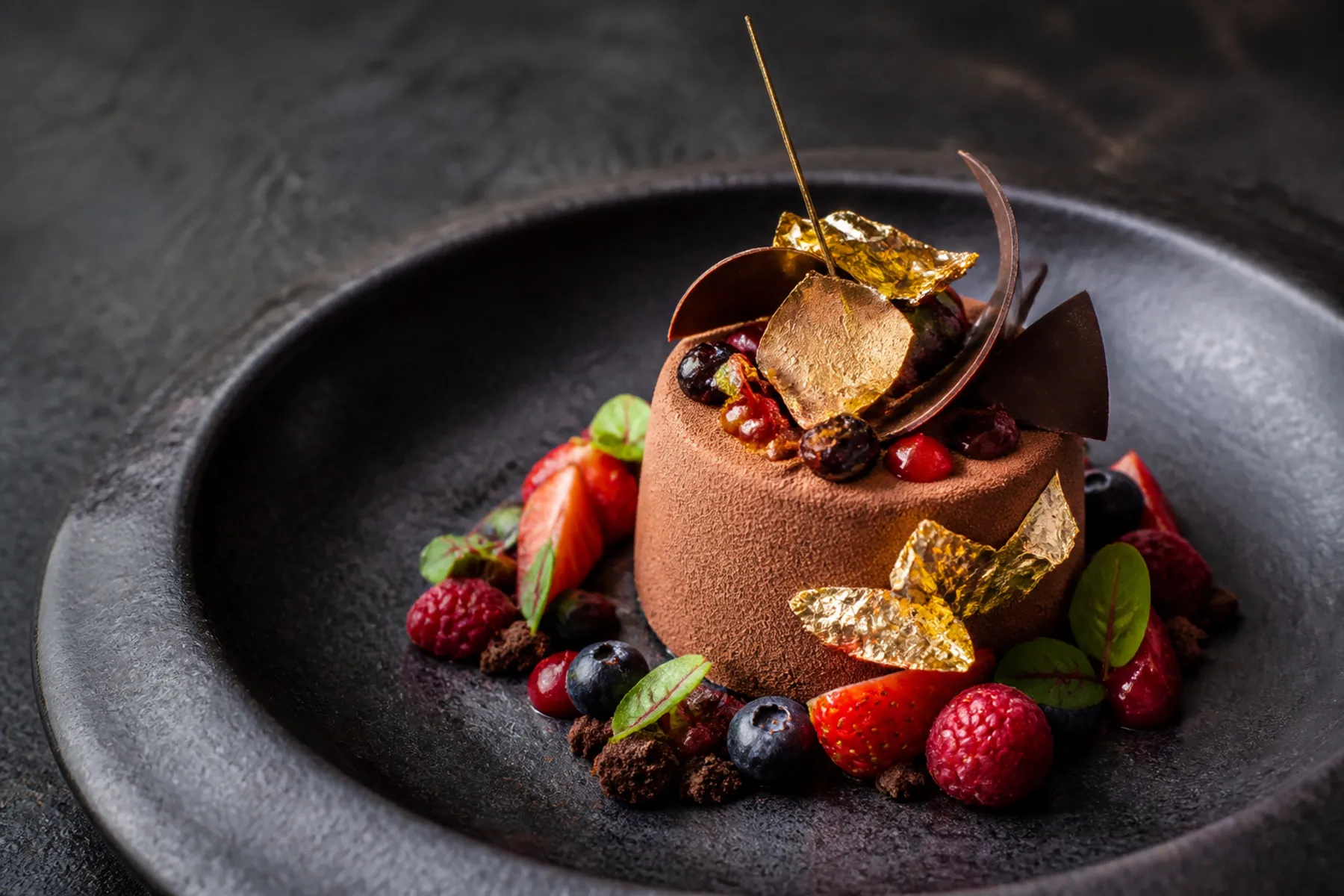
Nano Banana Pro
Concept reference: gourmet chocolate dessert with berries and gold leaf. This illustration is not a verified Nano Banana Pro output.
Explore Our Curated Set of Associated AI Models
Nano Banana 2
Concept reference: silver concept car in a concrete atrium. This illustration is not a verified Nano Banana 2 output.
Explore Our Curated Set of Associated AI Models
Seedream 4
Concept reference: floating-island temple at golden hour. This illustration is not a verified Seedream 4 output.
Explore Our Curated Set of Associated AI Models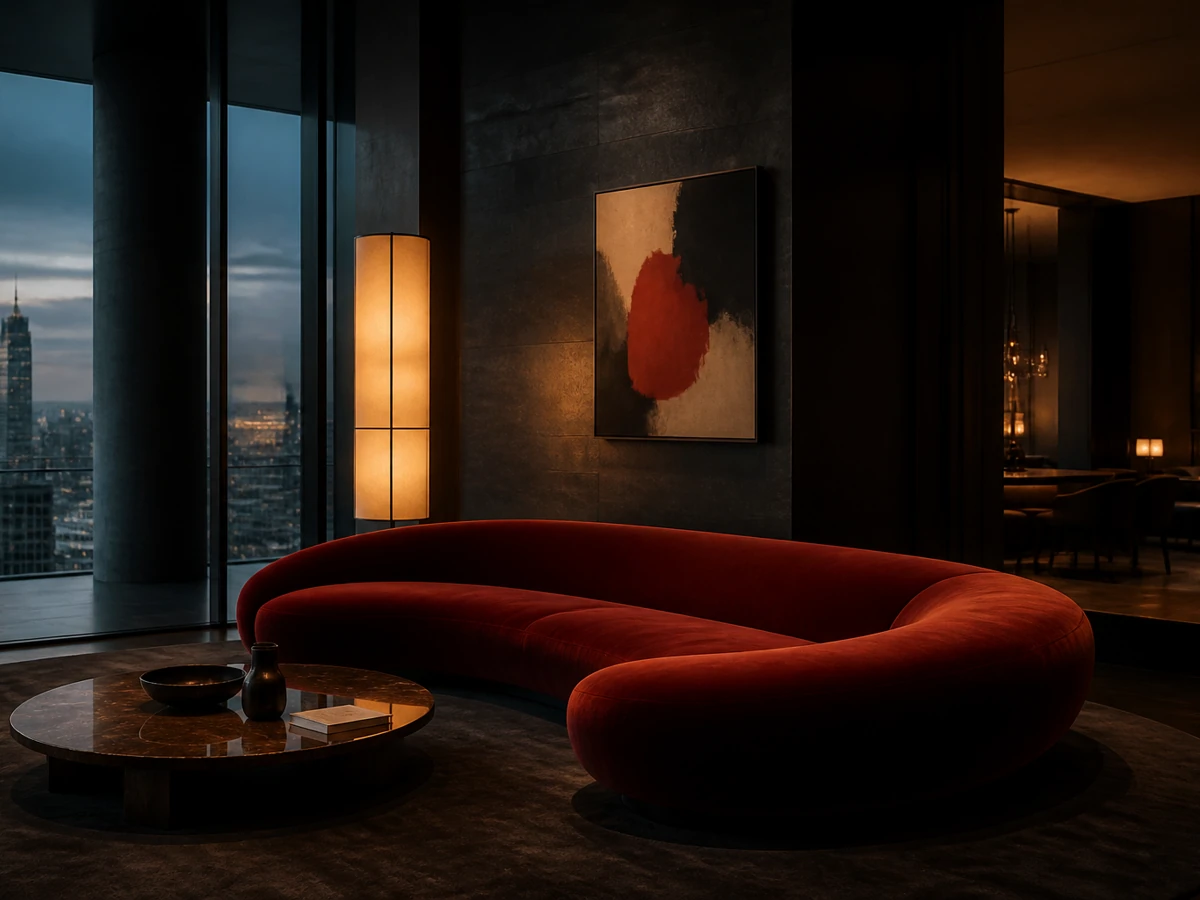
Z-Image
Concept reference: penthouse living room with a red velvet sofa at twilight. This illustration is not a verified Z-Image output.
Explore Our Curated Set of Associated AI Models
Flux 2
Concept reference: fighter jet flying through sunlit clouds. This illustration is not a verified Flux 2 output.
Explore Our Curated Set of Associated AI Models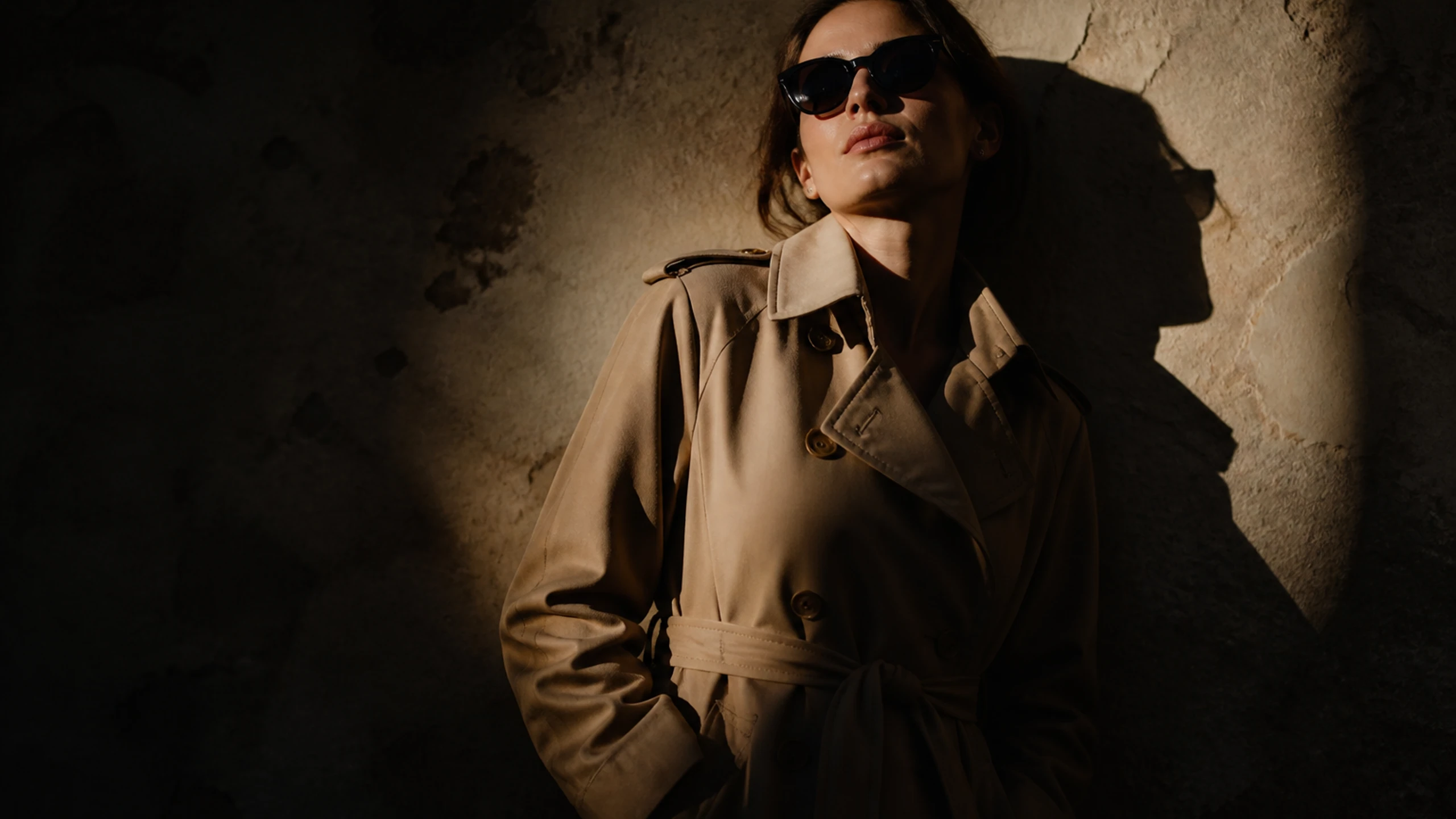
Choose a supported model, write one clear brief, and inspect the result against its intended use. Check your account credits before submitting a generation request.
Choose one placement or purpose before you describe the scene. Keep the first attempt specific enough to review against a concrete goal.
Confirm the available inputs, format choices, and credit estimate in the generator. Only plan around the options currently shown.
Describe the subject, setting, and composition, then identify the details you will inspect after the request completes.
Inspect the returned asset and decide whether it fits the planned use. Revise one direction at a time before building a larger set.